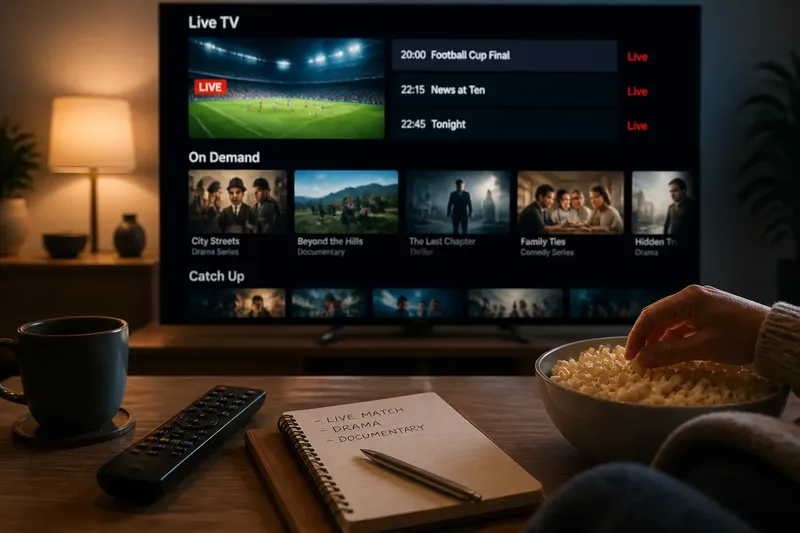
Why Streaming Menus Keep Reordering the Shelf
Streaming menus reorder the shelf for reasons that are not always obvious. Read row labels, check your active profile and assess what the layout leaves out.
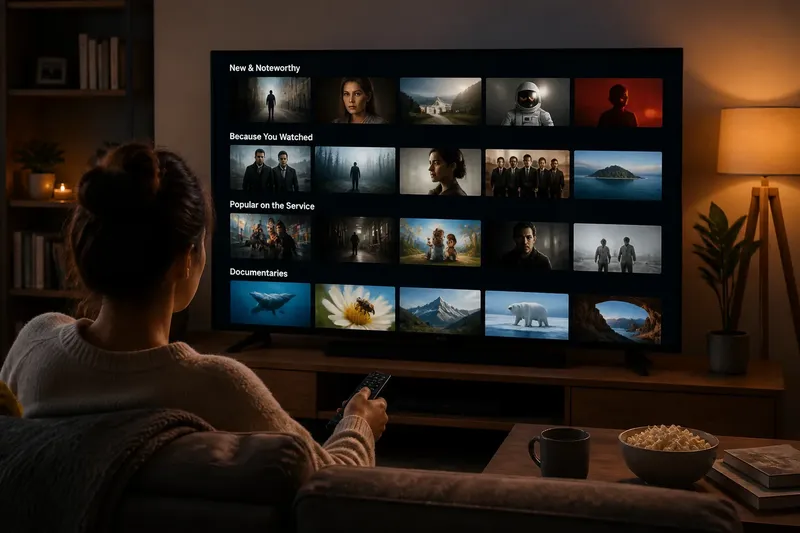
Why does a title you noticed last week now sit several rows lower? Streaming menus reorder the shelf, and that shift can change what catches your eye even when the catalogue has not changed. The useful question is not only where a title went, but what the page layout is trying to show you.
Read the home page as a set of signals
A streaming home page is a collection of entry points, not a complete catalogue. It might place a recently added shelf near the top, follow it with a genre collection, then show titles linked to your account’s viewing activity. The order can vary between visits, profiles and devices.
Row labels offer clues about how a collection is framed. “Because you watched” suggests a connection to viewing activity; “New” may identify recent additions; and “Popular” describes a selection made by the service rather than a universal ranking. The label does not tell you exactly how every title was chosen.
Some shelves are organised by subject or format, such as crime dramas or documentaries. Others reflect account activity, continue a programme, or give a promoted collection a prominent position. These purposes can overlap, so scan a few titles before assuming that the whole shelf fits its label or your mood.
Why streaming menus reorder the shelf
A shelf can move because the service has refreshed its page arrangement, changed a collection, or responded to account activity. Its position alone does not establish that a programme has disappeared. It also does not tell you whether the change came from a new recommendation, a promotion or a general interface update.
Profiles can show different shelves because their histories and settings differ. Shared viewing, a one-off curiosity, or a programme left playing in the background may also make suggestions feel out of step with your usual interests. Treat a recommendation as one possible path, not a verdict on your taste.
If you want to understand a change, check which profile is active and look for the title by name. If it appears, the shelf moved while the title remained available; if it does not, open the service’s search results or account details to check whether the title is unavailable in that service or profile. Availability can differ across services and devices.
Use shelves without letting them set your choice
Start with a specific viewing clue: a subject, language, format, performer or mood. Then use the shelf label to decide whether that route is relevant. If it is not, change the type of clue rather than scrolling through unrelated rows.
For instance, say you want a calm programme about gardens, but the opening page shows action films and a personalised drama shelf. You choose the documentary category, scan for garden-related titles, and then search for “gardens” when the category offers no close match. The observable result is a set of options tied to the subject, rather than a choice driven solely by whichever shelf appeared first.
Search and categories are not interchangeable. A category can reveal a curated collection, while a search for a specific person or subject can narrow the route more directly. If the results still feel broad, try a more precise clue, such as a language or a particular setting.
Check what the interface can and cannot tell you
Thumbnails and shelf names are shorthand. Open a title’s details when the format, language, audio, captions or content description matters. The service may show those options in different places, and what is available can depend on the device and profile.
Controls such as “more like this”, filters and saved lists serve different purposes. A similar-title link extends a recommendation trail; a filter narrows a collection; a saved list lets you keep a title for later without relying on memory. None needs to be used simply because it is on screen.
It is not worth trying to train every recommendation by deliberately watching titles or repeatedly rating them. If a shelf is unhelpful, switch to a different clue or route. Use a dislike or remove-from-history control only if you want to adjust the activity associated with the profile.
What should you check when a shelf changes?
Why did a row move?
The service may have refreshed its layout, collection or account-based suggestions. A change in position does not by itself mean a title has been removed, so search for its name if you need to confirm whether it is still listed.
Are recommendations the same for every profile?
They can differ when profiles have separate viewing histories or settings. Check the active profile before treating a shelf as a reflection of everyone’s preferences.
How can you find a title outside your usual shelves?
Use a concrete clue that differs from your recent viewing, such as a subject, language or performer. Search that clue or open a related category, then check the title details before choosing it.
What does a “Popular” shelf tell you?
It tells you how the service has named or framed that collection, but not the full basis for its selection. Read it as a browsing prompt rather than a complete account of what other viewers or the whole catalogue favour.
Small tools can make the page easier to read
On a television remote, moving through long shelves can be awkward. If the app supports voice search or a mobile companion app, either may make entering a specific phrase easier. Screen-reader support and text-display settings can also affect how clearly shelf names and title information are presented; check the app’s settings for the features available on your device.
When a title matters, confirm its details on the service rather than relying on a thumbnail or shelf label. Keeping the distinction between a page’s arrangement and the catalogue itself in mind makes streaming menus easier to interpret: use the shelf as a clue, then check the title or choose another route.