A Caption Check Before the Opening Scene
A caption check before watching helps you choose the right language, readable appearance and timing, so the opening scene is easier to follow.
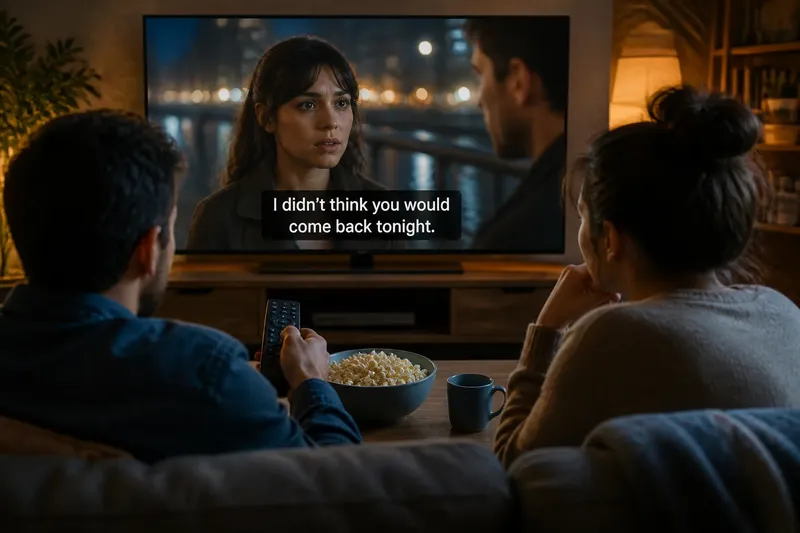
Will the captions be readable, in the language you need, and in step with the dialogue? A quick caption check before watching can settle those questions before the opening scene, whether you are using a television app, a streaming stick or a phone.
The useful routine is not to adjust every setting. Start with the issue most likely to distract you: language, appearance or timing. Then return to the programme and check the result against a short piece of dialogue. The right choice depends on the viewer, the screen and the programme, so a brief check is often more helpful than relying on one saved preference.
Choose the check that fits tonight
If you already know captions help you follow dialogue, check the selected language first. Streaming services may offer captions in several languages, subtitles for translation, or both. Captions usually include relevant non-speech sounds as well as spoken words; subtitles commonly focus on dialogue translated from another language. Labels vary, so read the options rather than assuming that “English” means the same format everywhere.
If the words are correct but hard to read, go to appearance. A small screen, a bright scene or a busy image can make the same caption style feel different. If the words appear too early, too late or in an awkward rhythm, check timing only after confirming that the selected track is the one you intended.
If you are watching with someone else, ask what would make the captions comfortable for both of you. One person may need a translation while another relies on sound descriptions; a single setting may not meet both needs. Where possible, check whether the app permits separate profiles or device-level preferences, rather than changing a shared setting without asking.
Check caption language before changing appearance
Open the playback controls and look for “Audio and subtitles”, “Captions” or a similar menu. Select the language and type of track that suits the viewing situation. For a programme in a language you understand, captions in that language may help with quiet dialogue or unfamiliar names. For a programme in another language, translated subtitles may be the better fit, while captions in the original language can help you study spoken words.
Do not assume that every language option covers the same material. A translated subtitle track may omit sound cues, while a caption track may include them. If the menu offers several versions of a language, choose one that matches the dialogue and any accessibility needs rather than selecting the first item by habit.
Say you are about to watch a Spanish-language episode with a friend who understands some Spanish but wants help with fast dialogue. You choose English subtitles for translation, play a short exchange, and notice that the track gives the dialogue without sound cues. If those cues matter to your friend, you switch to an English caption track that includes them, then keep that option for the episode.
Adjust appearance for the screen and scene
Caption appearance settings may include text size, colour, background, outline or opacity. The names and available choices differ between apps and devices. Change one feature at a time so you can tell what helped. A larger size may be easier to read from across a room, while a solid or shaded background can separate words from pale images. An outline can help on bright scenes without covering as much of the picture.
Use a scene with varied backgrounds for a useful check: a face against a light wall, then a darker shot with bright details. The aim is not to make captions look striking in a settings preview; it is to keep the words legible without obscuring important parts of the image. If you are watching on a phone, hold it at your usual viewing distance rather than judging the result close to your face.
Some services follow the device’s accessibility settings, while others provide their own controls. If changing a setting has no visible effect, check whether the app or the television is managing the captions. It is not worth repeatedly changing several appearance options at once; that makes it harder to identify which adjustment improved readability.
Check timing with a short spoken exchange
When captions seem out of sync, first pause and resume playback, or move back a few seconds. A temporary playback interruption can make timing feel wrong even when the selected track is suitable. Then watch a short exchange in which the speaker’s mouth is visible and compare the words with the dialogue.
If the captions consistently appear ahead of or behind speech, look for a synchronisation control in the player or device settings. Some services do not offer a timing adjustment. If the problem continues across a programme, try another available caption track or report the issue through the service’s accessibility or help channel; changing text size will not correct timing.
Where timing seems wrong only during music, rapid dialogue or a scene with overlapping speakers, the track may be simplifying a complex moment rather than drifting throughout. Check another exchange before deciding that the whole programme is out of sync. This distinction can save you from altering a setting that makes the rest of the episode less comfortable.
Which caption choice fits your situation?
What should I choose if I am learning the programme’s language?
Try captions in the spoken language if you can follow most dialogue and want help connecting sound with spelling. If that makes the story difficult to follow, use translated subtitles instead and return to same-language captions when you want a closer language exercise.
What works best when dialogue is difficult to hear?
Choose captions in the dialogue’s language, preferably a track that includes relevant sound cues. If the words remain difficult to distinguish, check the programme’s audio options as well; captions and clearer dialogue audio can address different parts of the problem.
How can I make captions easier to read on a television?
Start with a text size visible from your usual seat, then test a background or outline against both light and dark scenes. Keep the style that remains clear without covering faces or essential on-screen text.
What should I do if the captions do not match the speech?
Check a second spoken exchange and confirm that the correct track is selected before changing anything else. If the mismatch persists, try another track or use the service’s support options rather than treating an appearance adjustment as a timing fix.
Make the last check before settling in
Once the language and appearance suit the viewer, play a brief exchange and listen or watch for timing. Confirm that captions are switched on for the programme, since an app may not carry a previous choice into every title. If you are sharing the screen, make sure the words are comfortable for the person who needs them, not merely visible to someone sitting closer.
Caption check before watching does not need to become a ritual of testing every menu. Choose the track that fits the programme, make only the adjustment that solves a visible problem, and then let the story begin. If the next title has different dialogue, lighting or viewing company, a fresh glance at the caption menu may be all that needs to change.